
How to Clean Real Datasets Using Excel: A Data Analytics Starter Guide 🚀
Cleaning Real Datasets with Excel – My First Steps into Data Analytics

Hey there! I'm Avadhoot Kamble, a recent graduate in Artificial Intelligence and Data Science Engineering, and this is the story of how I started my journey into data analytics — not with complex models or advanced tools, but by doing something simple, real, and essential: cleaning messy, real-world datasets in Excel.
This blog is about how I worked on two datasets, faced real problems, and used basic but powerful Excel techniques to bring structure and clarity to the chaos.
📁 Dataset 1: US Presidents – Understanding the Dataset
The first dataset I tackled was about U.S. Presidents — a historic, structured list of who held office, when, and under which political party.
Here are the key columns and what they represent:
| Column Name | Description |
President | Full name of the U.S. president |
Party | Political party they belonged to |
Term Start | When their presidency began |
Term End | When it ended |
Vice President | Their VP during the term |
prior | A mysterious, irrelevant column (you’ll see what I did with it) |
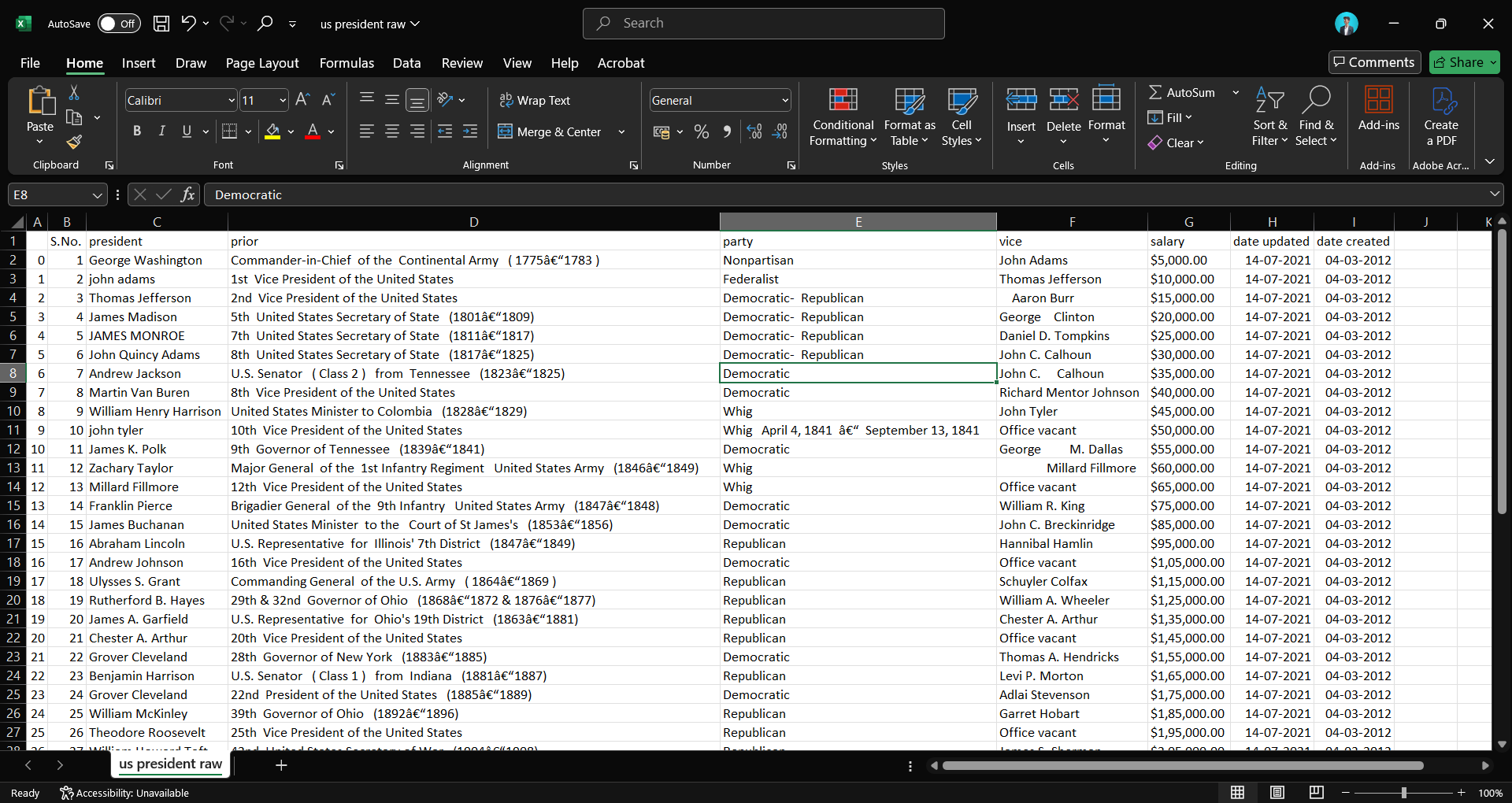
When I opened the dataset, it looked fairly clean on the surface. But as I examined it, I started spotting subtle inconsistencies:
Some president names were in all caps, some in lowercase, and some a mix.
Political party names had multiple spellings or formats.
Several cells had extra white spaces.
There was an odd column called
priorwhich clearly didn’t belong.
🧹 How I Cleaned the US President Dataset
🔁 Step 1: Remove Duplicates
I started by checking for duplicate rows using the Remove Duplicates function from Excel's ribbon. Even a small historical dataset can have redundant entries!
🧼 Step 2: Fix the Name Formatting
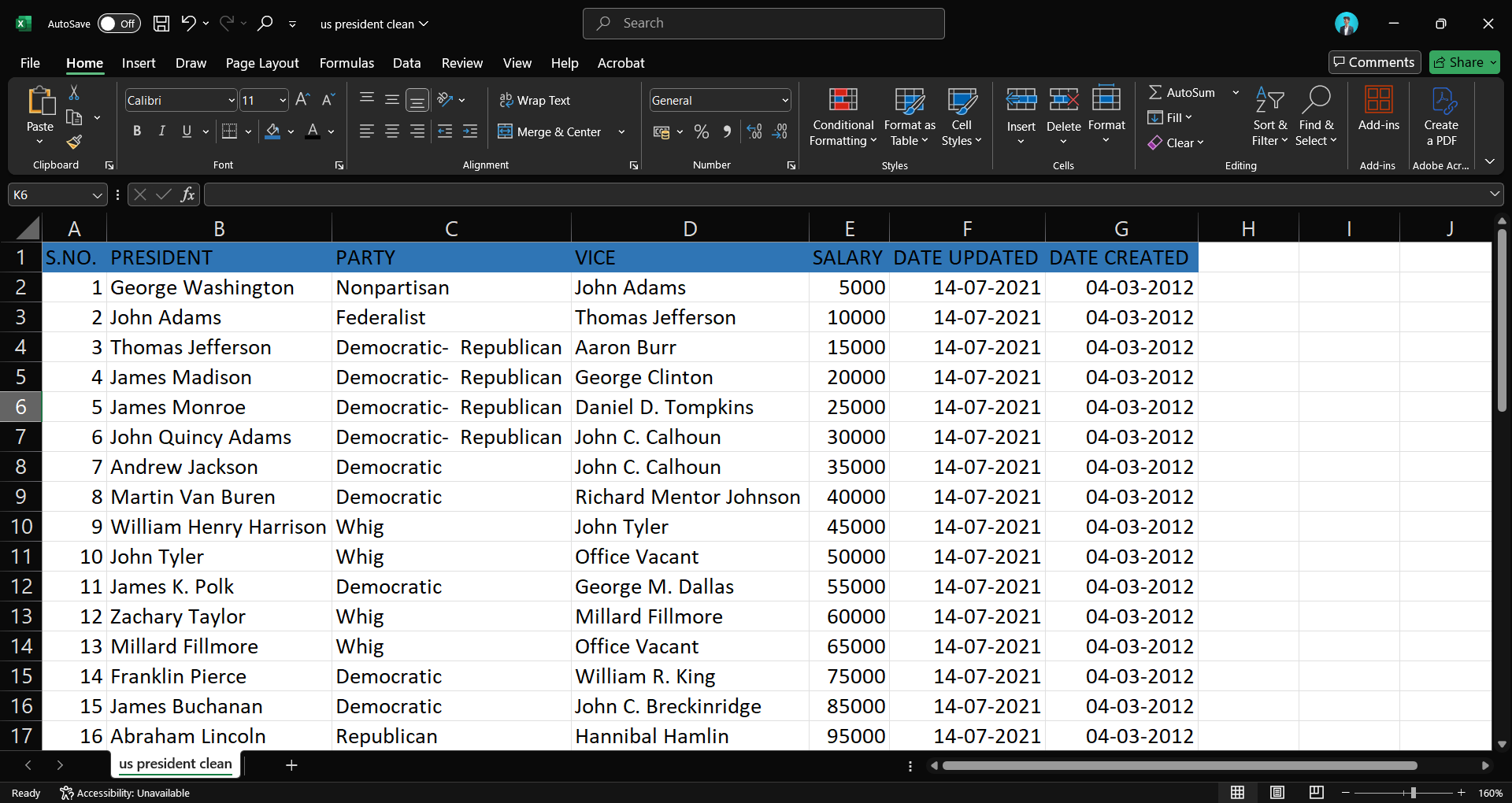
Next, I applied the PROPER() function to the President column. This automatically converted entries like george washington or GEORGE WASHINGTON into the clean and proper format: George Washington.
🧠 Step 3: Standardize the Party Column
I applied filters to the Party column and found variations of the same political party, like democrat, Democratic, and even misspelled ones like Democrattic. I corrected them manually to ensure consistency.
✂️ Step 4: Clean White Spaces and Format Other Columns
To fix other formatting issues, I combined TRIM() with PROPER() in most text columns. This removed unwanted spaces and ensured each word started with a capital letter.
🗓️ Step 5: Convert Dates to Proper Format
The date updated and date created columns were formatted as text. I converted them to date format using Excel’s built-in tools for cleaner sorting and analysis.
🗑️ Step 6: Delete the Useless Column
Lastly, I deleted the priorcolumn — it had no value to the dataset.
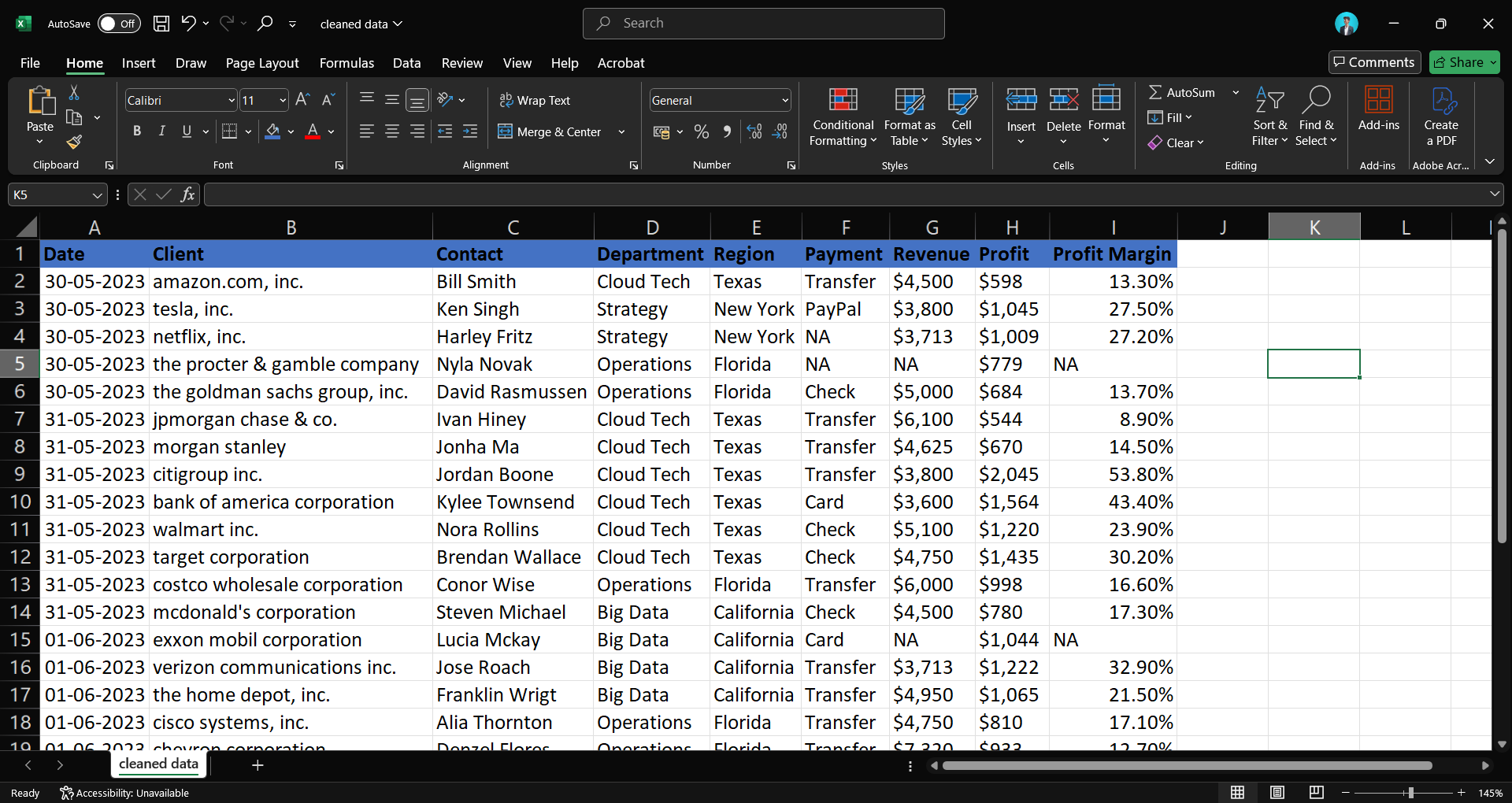
📁 Dataset 2: Client Transactions – Understanding the Dataset
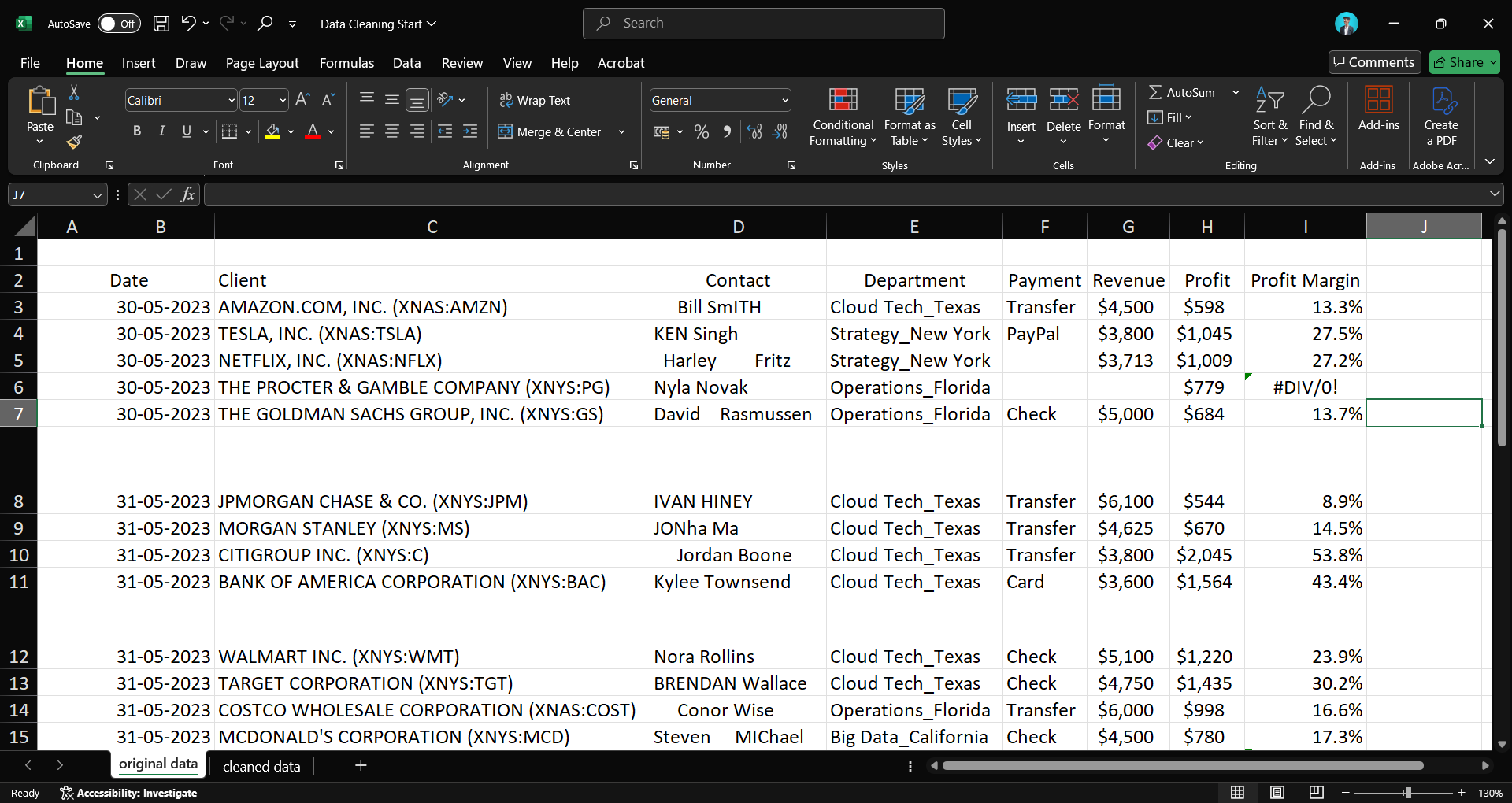
Next, I worked on a business-focused dataset that tracked client transactions. This was more practical and closer to real-world business use cases.
Here are the key columns:
| Column Name | Description |
Client | Client company names (often had extra notes in parentheses) |
Contact | Person of contact for each client |
Department_Region | Combined info: department and region separated by _ |
Revenue | Revenue from that client |
Profit | Profit earned |
Payment | Payment status/value (some blanks) |
Profit Margin | A calculated field — Revenue / Profit (some errors present) |
🧹 How I Cleaned the Client Transactions Dataset
📐 Step 1: Resize and Explore
Before doing anything, I auto-resized all columns and rows. A clearer view helps with cleaner work.
🧾 Step 2: Clean the Client Column
The Client column had values like “XYZ Corp (inactive)”. I removed everything inside parentheses, then used the LOWER() function to standardize names in lowercase. I did this in a new column, pasted the cleaned values as values only, and replaced the original.
👤 Step 3: Clean the Contact Names
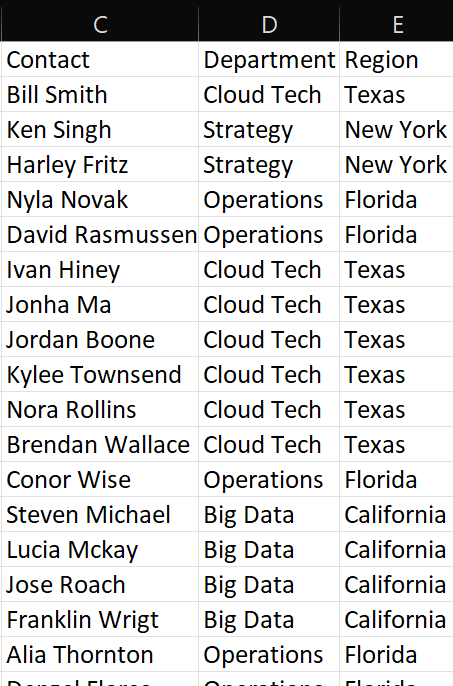
The Contact column was inconsistent too. I used TRIM() and PROPER() to clean spacing issues and convert all names to proper case (e.g., John Doe).
🏢 Step 4: Split the Department and Region
The Department_Region column combined two values, like “Finance_West”. I used Text to Columns with _ as the delimiter and split them into two new columns: Department and Region.
❌ Step 5: Remove Duplicates
I used the Remove Duplicates tool to clean any repeated rows that were sneaking in.
📭 Step 6: Fill Missing Payments
Several entries in the Payment column were blank. I selected them using “Go to Special” → “Blanks” and filled them with "NA" using Ctrl + Enter.
💡 Step 7: Fix Errors in Profit Margin
Some cells in the Profit Margin column had errors (due to zero or missing values in the formula). I used:
=IFERROR(Revenue / Profit, "NA")
to catch those and keep the sheet error-free.
🎨 Step 8: Final Touches
I formatted all headers and added some color to improve readability.
💡 What I Learned from These Projects
These may have been simple projects, but they taught me big lessons:
Data cleaning is not glamorous, but it’s crucial. Without it, no analysis is trustworthy.
Excel is underrated. It’s packed with powerful functions that are more than enough for beginner and intermediate cleaning tasks.
Details matter. Whether it's a spelling mistake, a space, or a duplicate row — these small issues cause big problems later in the pipeline.
But most importantly, I learned that even basic tools can teach deep lessons about working with real data.
🚀 What’s Next?
Now that I’ve started with Excel, I’m stepping into the world of Pandas and Python. 🐍
I’ve already started a project where I’m cleaning a more complex dataset using:
dropna(),fillna()Regex for text patterns
.apply()for column transformationsHandling missing and inconsistent values with scripts
In my next blog, I’ll walk you through that project too — and compare the experience of cleaning data in Excel vs Python.
🙌 Let’s Connect
Thanks for reading! If you’re also starting out in data science or just curious about how real-world data cleaning looks, I’d love to connect.
Follow my journey here and across platforms:
Let’s keep learning — and cleaning — one dataset at a time!
#Excel #DataCleaning #DataAnalytics #LearningInPublic #MSExcel #BeginnerProjects #DataScience #Python #Pandas #BloggingJourney #PortfolioProject


